$SPY 642C @ .32 — starter entry posted
Sun Ryse Software LLC
Want a bot that follows your entries and exits without hesitation?
Already paying for Discord or X alerts but still missing entries, chasing late, or breaking your own plan? Roostar connects your broker to the sources you already follow and executes the entries, targets, stops, and risk rules you set from one desktop app.
How it works in one loop
Buy 2 · target +28% · stop -18%
Filled 2 @ 0.32 · target armed
Sold @ 0.41 · plan followed
Alert in. Rule matched. Order sent. Exit managed.
Get started
Claim the offer and download the app
Run the session
Connect sources, set rules, stay in control
Supported today
Roostar supports a fixed broker and source matrix in production.
The product is not open-ended automation. These are the exact brokers, Discord server presets, and X handles currently supported on the live app.
Supported brokers
- Tradier
- Alpaca
- IBKR (Client Portal)
- Tastytrade
Supported sources
- Mike Investing on Discord — entries and source management
- DiamondTrading on Discord — entries only
- @_0DTE, @itsCblast, @capricekayem, and @Prophitcy on X — entries only
Launch offer
Try Roostar for 20 days. Then use ROOSTAR999 for $9.99/month.
Start the trial, use the code, and see if Roostar earns a place in your daily routine.
ROOSTAR999
20-day trial
$9.99/month
$50 saved on yearly billing
Take the monthly path first if you want the lowest-friction way to test execution, exits, and fit.
The yearly plan keeps the same Base access and saves the equivalent of two monthly renewals.
Platform overview
Understand Roostar in one minute.
Buy on the site. Run the live session in the app. That keeps signup simple and the trading surface clean.
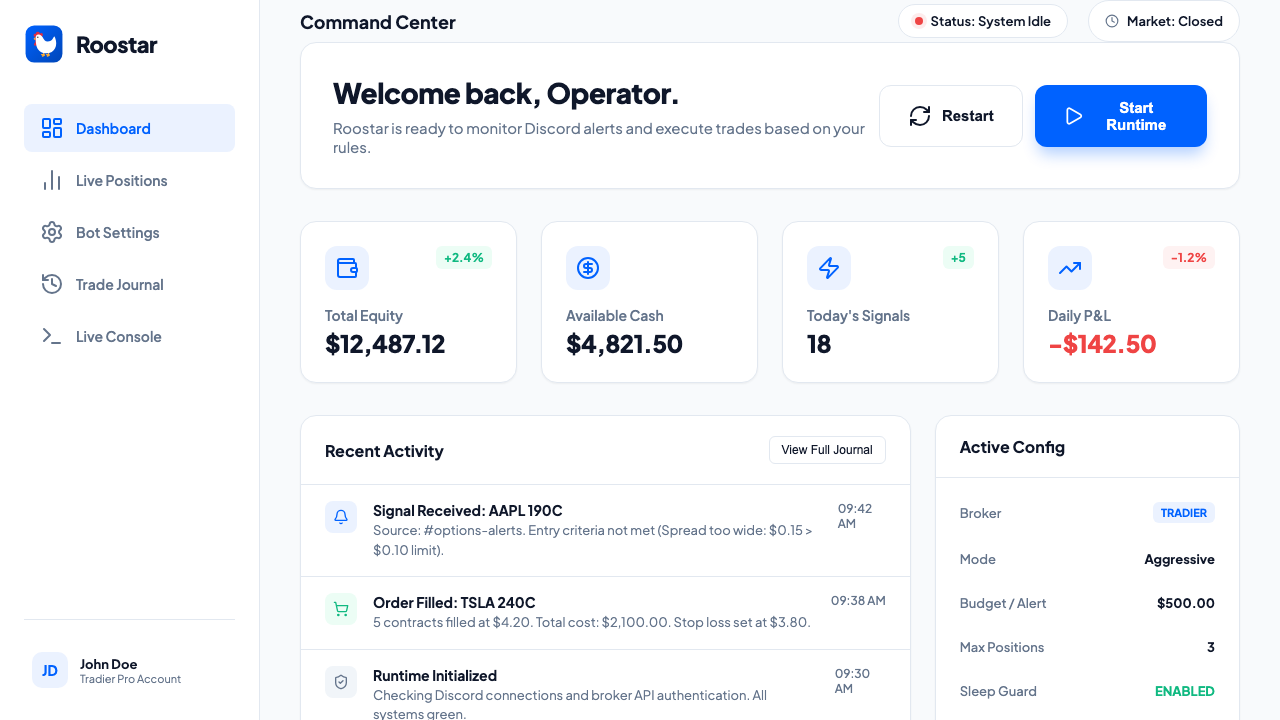
Live operator view
The desktop app is where the live session runs.
Watch incoming alerts, confirm readiness, review activity, and keep manual controls within reach instead of chasing trades across tabs.
- Broker status, buying power, and readiness checks in one place
- Discord and X alerts translated into a repeatable rule-based workflow
- Manual pause, reset, and intervention controls when needed
Who it helps
Built for traders who want the plan followed the same way every time.
- People asking, "Why am I paying for alerts I still cannot execute on time?"
- Traders who know the real problem is execution discipline, not finding more alerts
- Anyone who wants cleaner entries, tighter exits, and less emotional decision-making
Product tour
Three views that explain what the app actually does.
Roostar is simple: set up access on the site, finish broker and alert setup in the app, then let the app run the session using your rules.
01 · Operations cockpit
See alerts, positions, and controls in one place.
Keep runtime status, connected account context, session review, and notes in one clear desktop workspace instead of managing a pile of tabs.
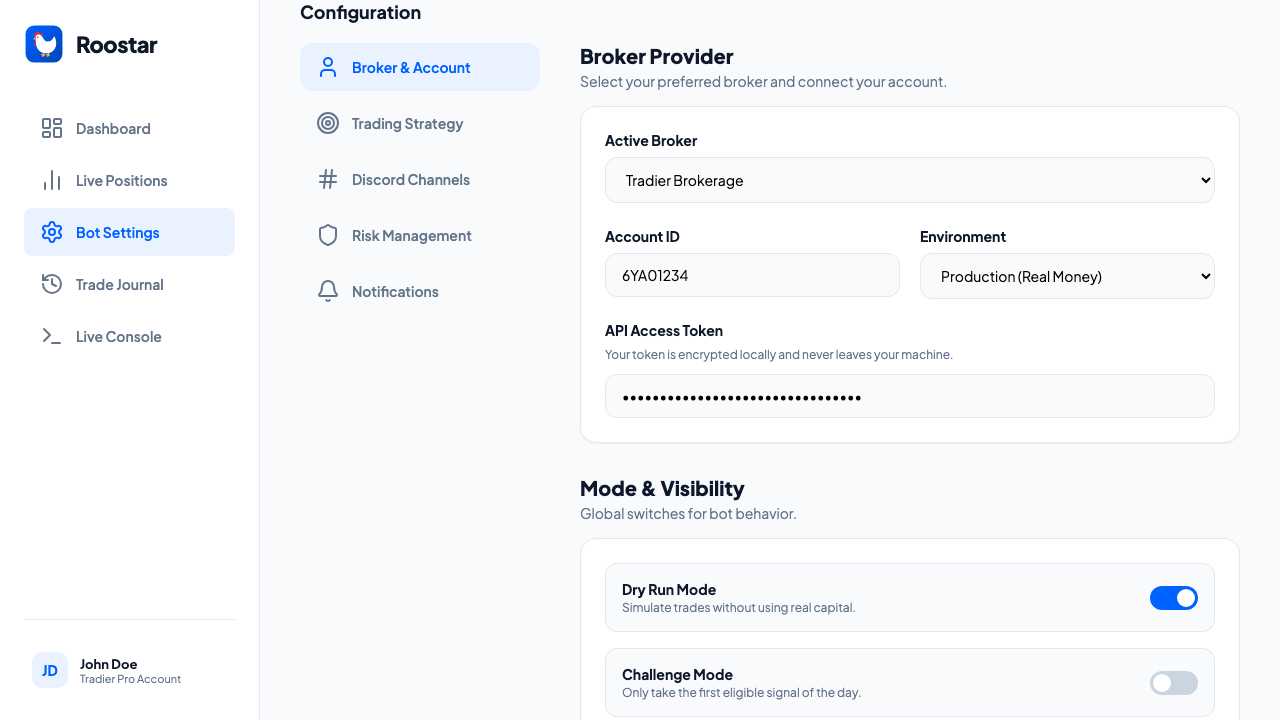
02 · Precision setup
Set your entries, size, targets, and stops before you go live.
Roostar trades on the rules you save. It does not improvise, guess, or chase for you.
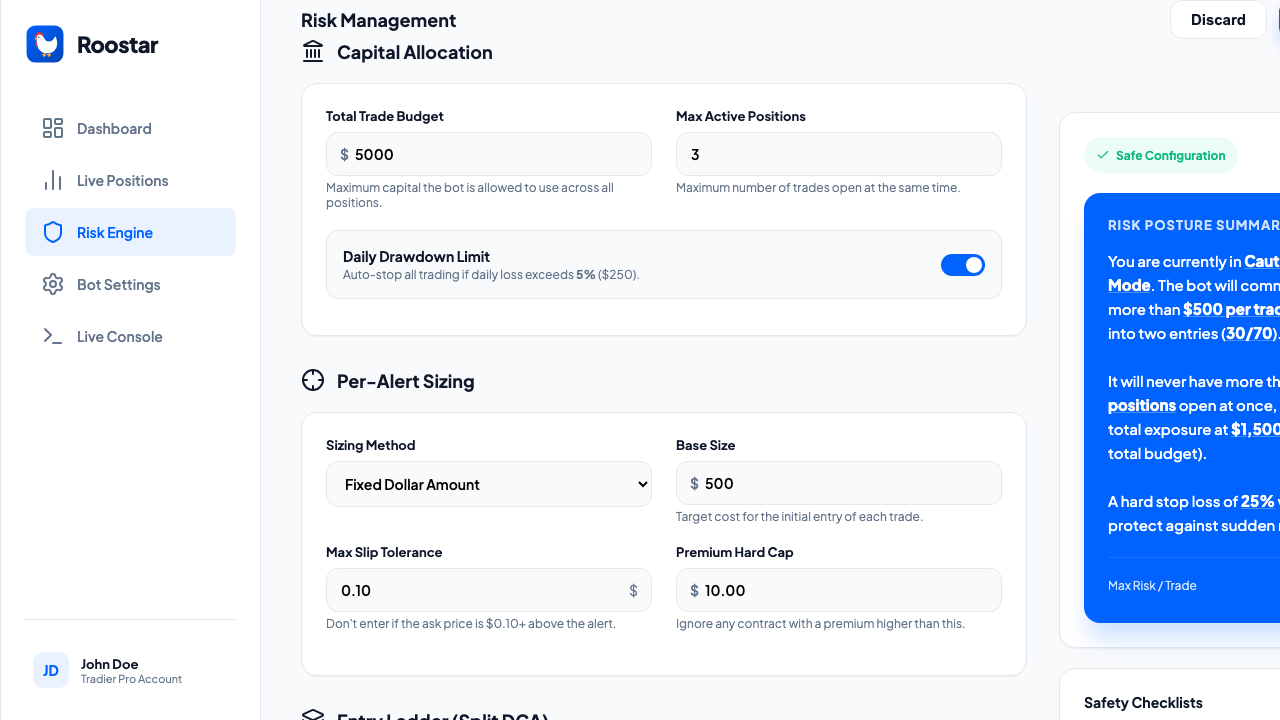
03 · Risk controls
Keep exits, overrides, and safety controls within reach.
When the session turns fast, Roostar keeps manual fallback and session protection visible instead of buried.
Setup guide
Start on the website. Trade from the desktop app.
Create your account on the website, then finish broker and alert setup inside the desktop app before you let Roostar run the session.
Create your Roostar account.
Start Base, complete checkout, and begin your subscription or 20-day trial.
Download the desktop app and sign in.
The app reads your plan automatically. You do not need to buy again inside the app.
Connect your broker and paste your alert source links.
The setup page walks through each account, source, and safety field before you save.
Enable the live session when you are ready.
Roostar only starts after you explicitly finish setup and turn it on.
What happens on the website
- Create your Roostar account
- Start the Base subscription
- Manage billing and trial access
- Download the desktop app
What happens in the desktop app
- Sign in with the same Roostar email
- Connect your broker and alert sources
- Save entry, target, stop, and safety rules
- Enable the live session and review activity locally